
asdewhi
Applies to
- Worldwide Professional Services & Managed Services (WW PS & MS) Organization
Description
This Step-by-Step Procedure article explains how to open a request in the new PS Contracts and Compliance SharePoint site. The article includes instructions for creating a new request, receiving notifications, and viewing your requests in the PS Contracts Request Portal.
Procedure
Section 1: Creating a New Request
- Open PS Contracts Request Portal in PowerApps.
-
Click Select Create New Request.

-
Complete the Request Form in the PS Contracts Request Portal.
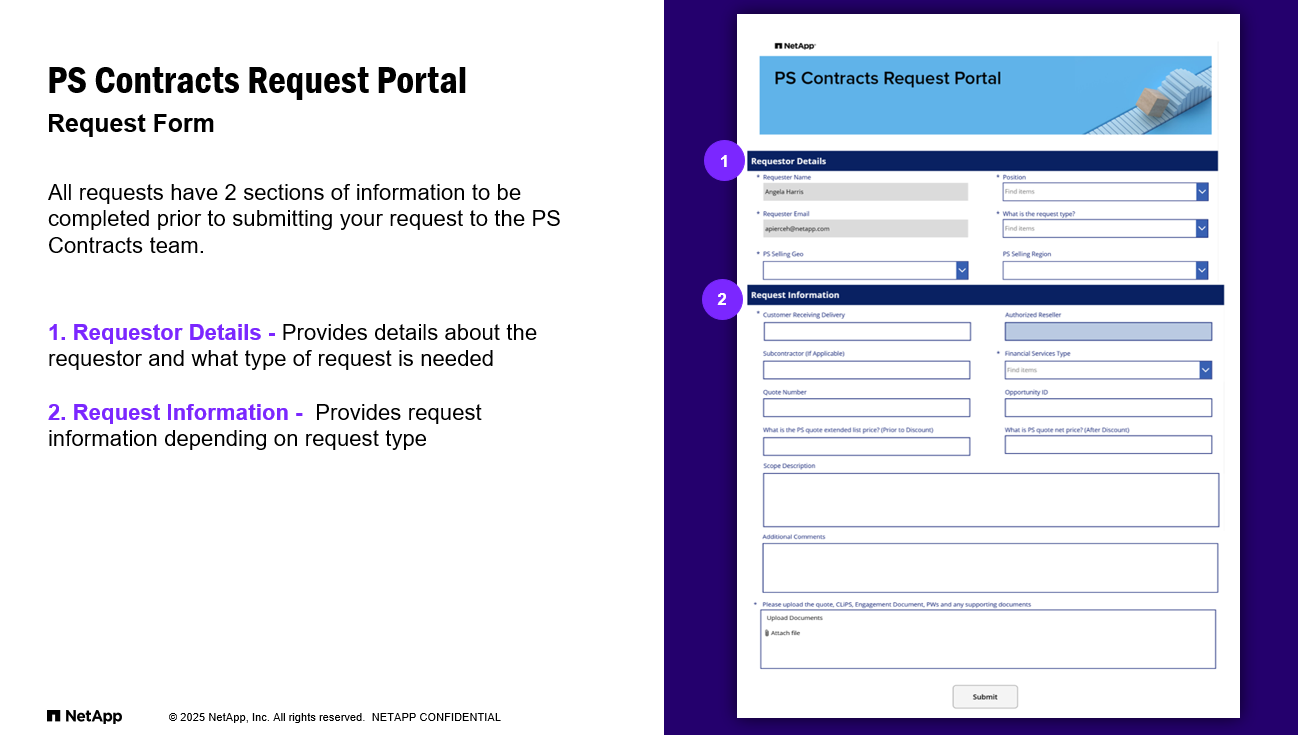
*Required Fields -
Complete Section 1. Requestor Details:
- Requestor Name and Email - Auto populated
- Position - Select from drop downs
- PS Selling Geo - Select from drop downs
- Request Type - Select from drop downs
- PS Selling Region - Select from drop downs (if not listed, leave blank and note in comments)

*Required Fields
Note:
- If you are submitting a request for a SOW Review or CR, go to step 5.
- If you are submitting a request for an Inquiry, go to step 6.
-
For SOW Review or CR Requests:
Complete Section 2. Requestor Details:
- Customer Receiving Delivery - End Customer receiving services
- Financial Services Type - Select the appropriate FST
- Upload Documents – Upload all supporting documentation
- Submit - After uploading all documentation and completing the information, select “Submit”

*Required Fields -
For Inquiry Requests:
Complete Section 2. Requestor Details:
- Type of Inquiry - Select from drop downs:
- Policies/Procedures - Questions or concerns about policies or transacting business for PS
- Misc/Other - All other questions or concerns
- SOW/CR - Questions or concerns about SOW or Change Request drafting/execution
- Upload Documents - Upload all documents for review and supporting documentation
- Submit - After uploading all documentation and completing the information, select “Submit”

*Required Fields
Section 2: Notifications
-
Email notifications will be provided when a request is submitted and when a request has been assigned.

Section 3: View My Requests
- Open PS Contracts Request Portal in PowerApps.
-
View your requests in the My Contracts dashboard:
- Filters - Filter requests by Type of Request, Geo, and PS Contracts team Owner
- Status - Select each status to view your requests
- Create Contracts Ticket - Create a new PS Contracts request directly from your dashboard

Partner Notes
Internal Notes
| Date | Version | Notes | Author | Approved By |
|---|---|---|---|---|
| 04/09/2025 | 1 | Converted PowerPoint to document. | Angela Harris | Toscha Cooper |