
testkb
Applies to
- Worldwide Professional Services & Managed Services (WW PS & MS) Organization
Description
This document is intended as a Step-by-Step guide for Sales and Services sales individuals to request Technical Resources on new and upcoming sales opportunities in Salesforce. Completing the steps will also “tag” the requested individual(s) to the opportunity ID for management tracking purposes.
Procedure
Step 1: Log in to Salesforce
- Log in to Salesforce via the internal homepage link
Step 2: Search for the Opportunity
- Use the “Search” function at the top of the page to find the open opportunity.

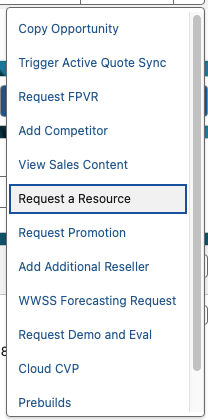
Step 3: Open the Pull-Down Menu
- Select the pull-down menu in the upper right-hand corner (see arrow below).

Step 4: Request a Resource
- Select “Request a Resource” from the pull-down.
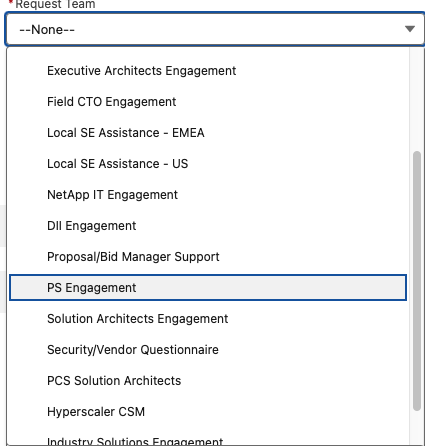
Step 5: Select PS Engagement
- Select “PS Engagement” from the request team section.
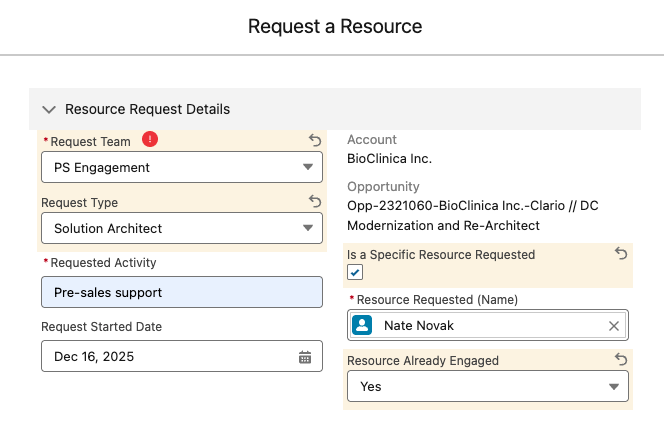
Step 6: Choose the Requested Activity
- Select the most appropriate requested activity.

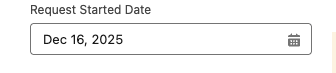
Step 7: Set the Engagement Date
- Select the appropriate date for the resource to engage (past, present, or future date).
Step 8: Specify a Resource (If Applicable)
- If a specific resource is requested, check the box indicating so and enter a resource name. Also indicate if the resource is already aware and engaged.
Step 9: Complete Optional Fields
- The remaining fields are optional.

Step 10: Submit the Request
- Click “Submit” to submit the form.

Step 11: (Optional) Update Assignment Status
- For those that have access to assign resources, after 5 minutes you may update the status from “Pending Assignment” to “Assigned.”


Partner Notes
Additional Information
- As a prerequisite, the Opportunity ID must already exist and have been created in Salesforce.
- Related Links: Internal Salesforce homepage
Internal Notes
- Document History:
- 12/16-2025, Version 1.0, Initial Release, Author: Nate Novak, Approved By: Mark DeGroot